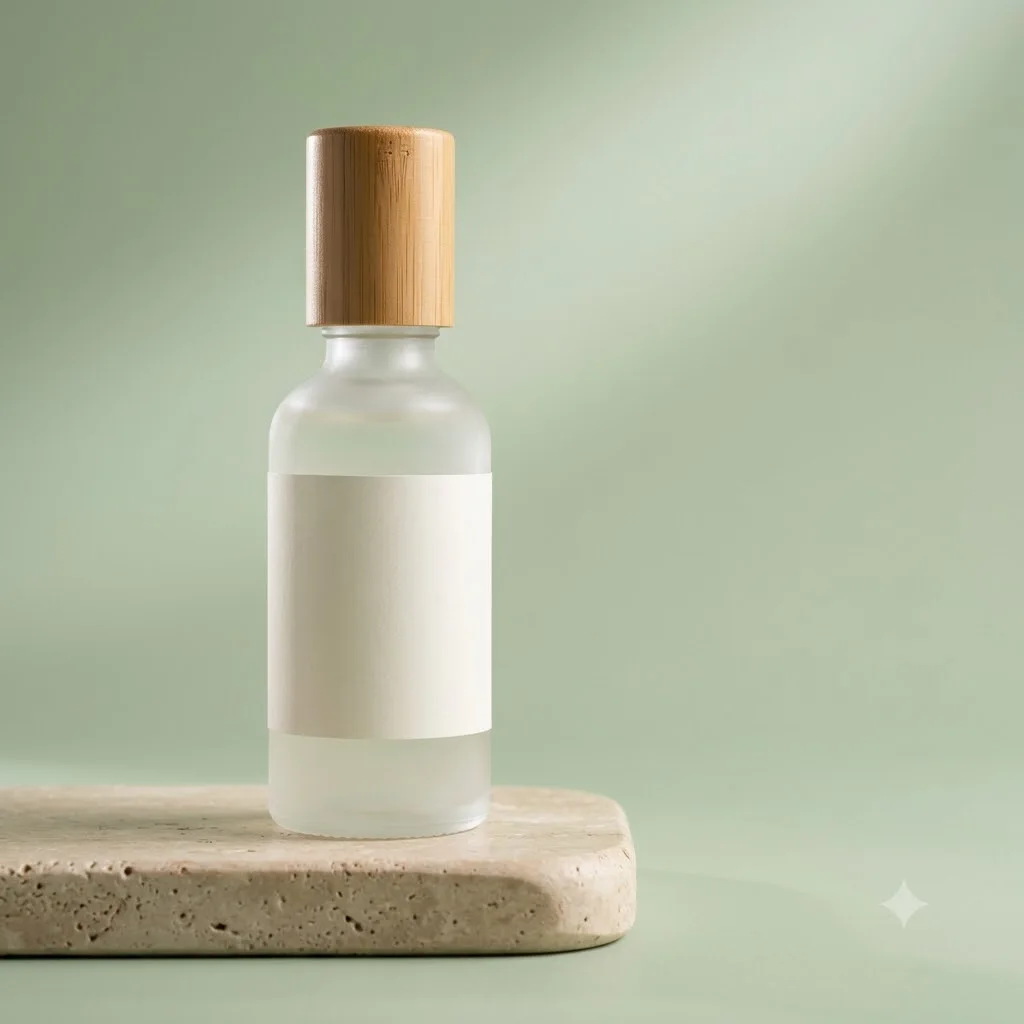
Premium product shot on a sculpted plinth
A square product-photo brief with a clear composition and room for your own copy. Paste this prompt into ChatGPT, Gemini or Grok, change the parts in brackets to suit you, and generate.
- Written for
- ChatGPT, Gemini, Grok
- Status
- Tested 27 Sep 2026 in Gemini app (web), Flash mode with built-in image generation
- Test settings
- Default copy text pasted unchanged into a new Gemini chat. No reference image. First result used; only converted to WebP.
- Variability
- Layout, colours and small details change between runs. Gemini adds a small sparkle watermark in the corner.
Prompt
Create one square (1:1) premium product photograph of a frosted glass skincare bottle with a bamboo cap. If I upload a photo of the actual product, use it as the reference for its shape, cap, colour and visible branding. Do not invent a logo or alter readable label text. If no product photo is supplied, make the product unbranded and leave its label blank.

Place one upright product on a low, smooth travertine stone plinth with rounded edges. Use a seamless curved soft sage green backdrop. Position the product slightly left of centre; it should occupy about 60% of the image height. Keep the right third uncluttered for copy that I will add later.

Use broad, soft light from the upper left, gentle fill on the right, a clean edge highlight and a natural contact shadow. Show the product at eye level with a straight-on, 100mm product-photography look. Keep the product sharp and the backdrop softly blurred.

Keep the scene minimal. No extra products, people, hands, floating objects, decorative text or invented branding. If details in my reference photo are unclear, do not claim an exact match.
Customise
For example: a frosted glass skincare bottle with a bamboo cap.
For example: travertine stone.
For example: soft sage green.
Fields start with illustrative values; replace them with your own facts. The prompt updates as you type. Copy prompt copies your version.
How to use it
- Open an external image tool named above. Check Status for the provider actually tested.
- Paste the prompt. Replace anything in [BRACKETS] first, or use Customise.
- Send, then ask for small changes in follow-up messages.
How to use this prompt
- This prompt makes a new picture. Check the AI app named above and the real test recorded in Status.
- Fill Customise with what you want, or replace [BRACKETS] with the right details. Press Copy prompt and paste it into the image app you chose.
- When the picture is ready, check objects, hands, faces, writing and any detail that matters. Ask for one clear correction if something is missing.
Good to know
- The visual preview is an illustration, not an output from this prompt. Upload a clear product photo when shape or branding matters. Results and label accuracy can still vary by model and run; check the image before commercial use.