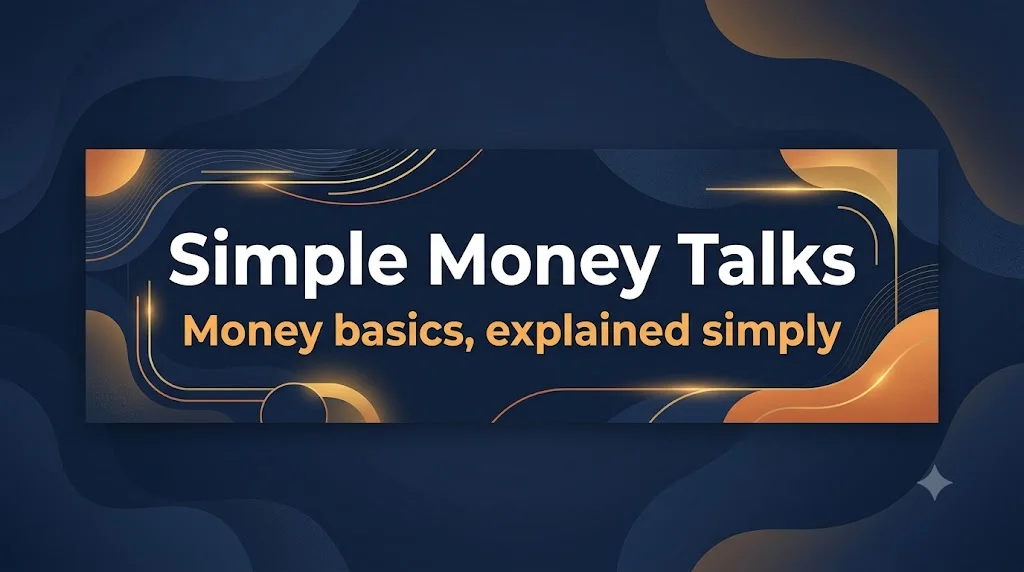
YouTube channel banner with a safe text area
A 2560×1440 banner with the name and tagline kept inside the area every device shows. Paste this prompt into ChatGPT, Gemini or Grok, change the parts in brackets to suit you, and generate.
- Written for
- ChatGPT, Gemini, Grok
- Status
- Tested 27 Sep 2026 in Gemini app (web), Flash mode with built-in image generation
- Test settings
- Default copy text pasted unchanged into a new Gemini chat. No reference image. First result used; only converted to WebP.
- Variability
- Layout, colours and small details change between runs. Gemini adds a small sparkle watermark in the corner.
Prompt
Create a YouTube channel banner, 2560 x 1440 pixels (16:9).

Channel name: "Simple Money Talks"
Tagline: "Money basics, explained simply"
Theme: calm, trustworthy, modern
Colours: deep navy with warm orange and gold accents

Layout rules:
- Put the channel name and tagline only inside the centre safe area (about the middle 1546 x 423 pixels), because TVs, desktops and phones crop the edges differently.
- The rest of the canvas is background only: soft shapes, texture or a scene that extends to the edges.
- Large, bold, easy-to-read text; spell it exactly as given.

Avoid: faces, real brand logos, small text, important details near the edges.
Customise
For example: Simple Money Talks.
For example: Money basics, explained simply.
For example: calm, trustworthy, modern.
For example: deep navy with warm orange and gold accents.
Fields start with illustrative values; replace them with your own facts. The prompt updates as you type. Copy prompt copies your version.
How to use it
- Open an external image tool named above. Check Status for the provider actually tested.
- Paste the prompt. Replace anything in [BRACKETS] first, or use Customise.
- Send, then ask for small changes in follow-up messages.
How to use this prompt
- This prompt makes a new picture. Check the AI app named above and the real test recorded in Status.
- Fill Customise with what you want, or replace [BRACKETS] with the right details. Press Copy prompt and paste it into the image app you chose.
- When the picture is ready, check objects, hands, faces, writing and any detail that matters. Ask for one clear correction if something is missing.
Good to know
- YouTube's minimum upload is 2048×1152 and its safe area for text at that size is 1235×338. Preview it on phone and desktop after uploading; AI tools may misspell text.