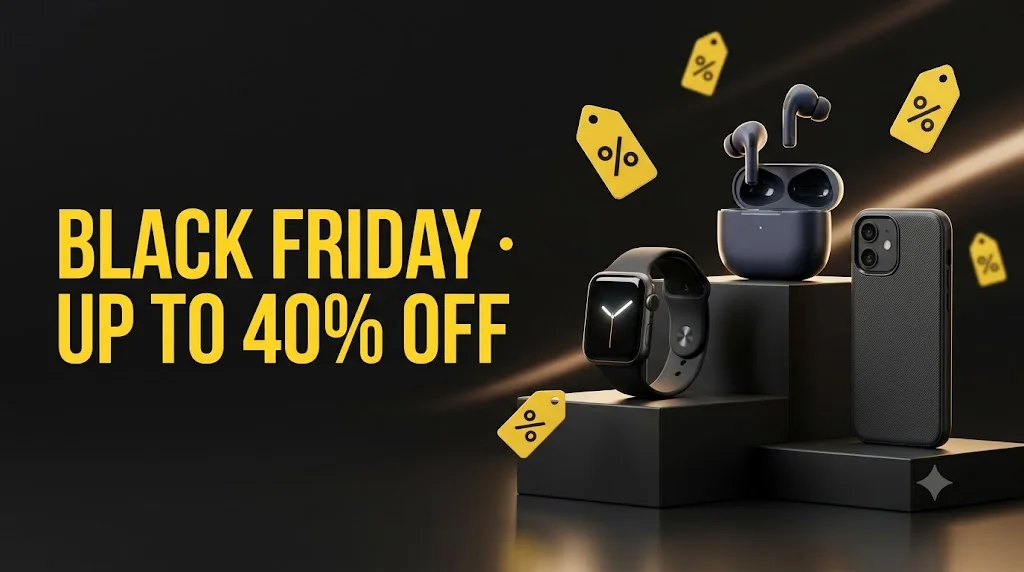
Black Friday sale banner for your shop
A bold sale banner with your product type and offer text, ready for a website or post. Paste this prompt into ChatGPT, Gemini or Grok, change the parts in brackets to suit you, and generate.
- Written for
- ChatGPT, Gemini, Grok
- Occasion
- Black Friday & Cyber Monday · 27 Nov · Cyber Monday 30 Nov
- Status
- Tested 29 Sep 2026 in Gemini app (web), Flash mode with built-in image generation
- Test settings
- Default copy text pasted unchanged into a new Gemini chat. No reference image. First result used; only converted to WebP.
- Variability
- Layout, colours and small details change between runs. The offer text came out spelled correctly in this run. Gemini adds a small sparkle watermark in the corner.
Prompt
Create a sale banner for an online shop.
Scene: wireless earbuds, a smartwatch and a phone case arranged on stepped black podiums against a matte black background, a few floating yellow shopping tags and soft light streaks.
Text: large bold sans-serif "BLACK FRIDAY · UP TO 40% OFF" in bright yellow on the left third; spell it exactly; no other text.
Light: crisp studio light, strong rim light on the products, soft floor reflections.
Style: modern high-contrast retail advertising, clean and premium, lots of negative space around the text.
Format: horizontal 16:9.
Avoid: real brand names or logos, fake prices, extra or misspelled words, clutter, watermarks.
Customise
For example: wireless earbuds, a smartwatch and a phone case.
For example: BLACK FRIDAY · UP TO 40% OFF.
For example: horizontal 16:9.
Fields start with illustrative values; replace them with your own facts. The prompt updates as you type. Copy prompt copies your version.
How to use it
- Open an external image tool named above. Check Status for the provider actually tested.
- Paste the prompt. Replace anything in [BRACKETS] first, or use Customise.
- Send, then ask for small changes in follow-up messages.
How to use this prompt
- This prompt makes a new picture. Check the AI app named above and the real test recorded in Status.
- Fill Customise with what you want, or replace [BRACKETS] with the right details. Press Copy prompt and paste it into the image app you chose.
- When the picture is ready, check objects, hands, faces, writing and any detail that matters. Ask for one clear correction if something is missing.
Good to know
- Use only offers you really give. Long text may be misspelled; keep it short or add it later in an editor.