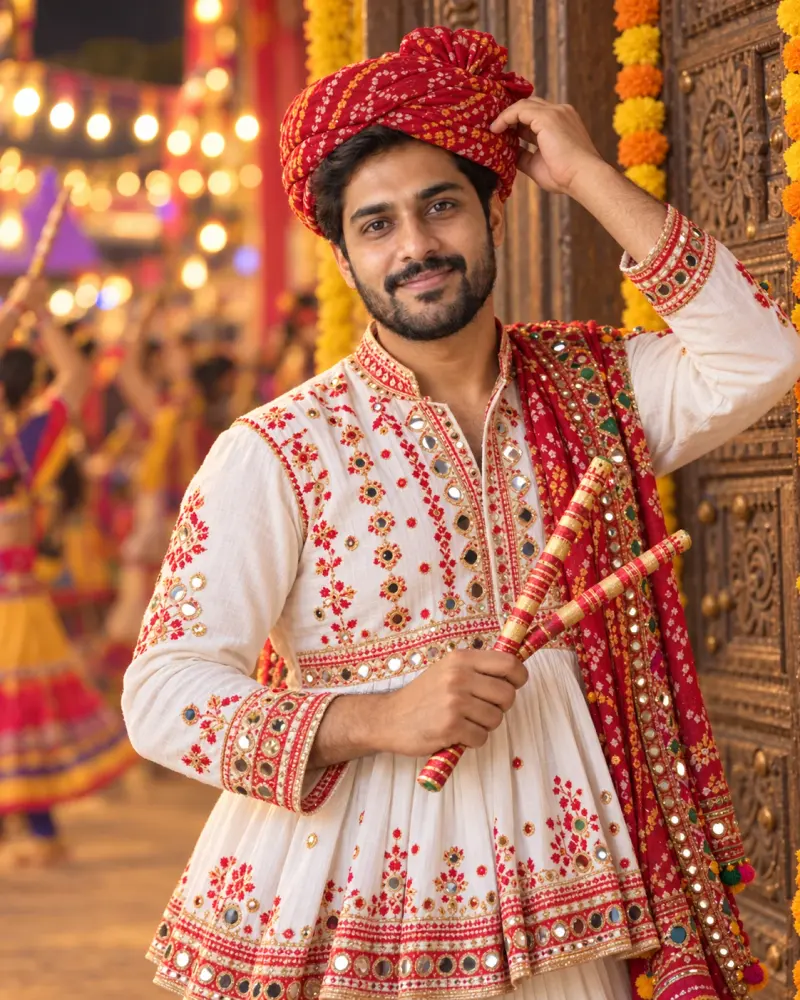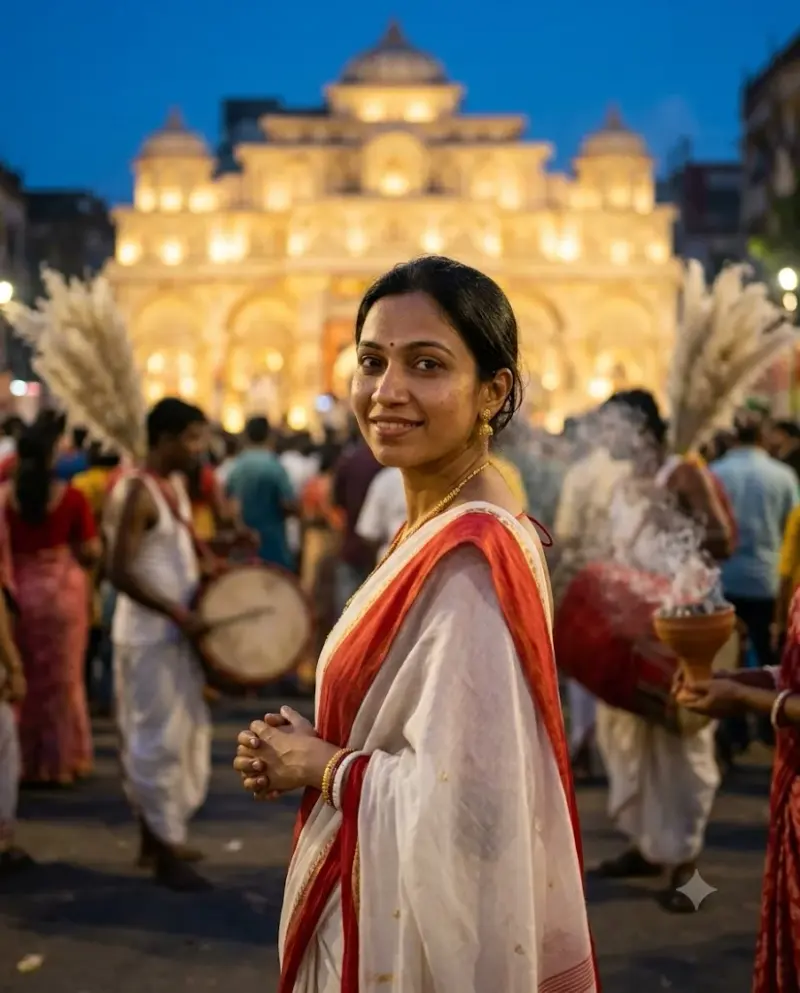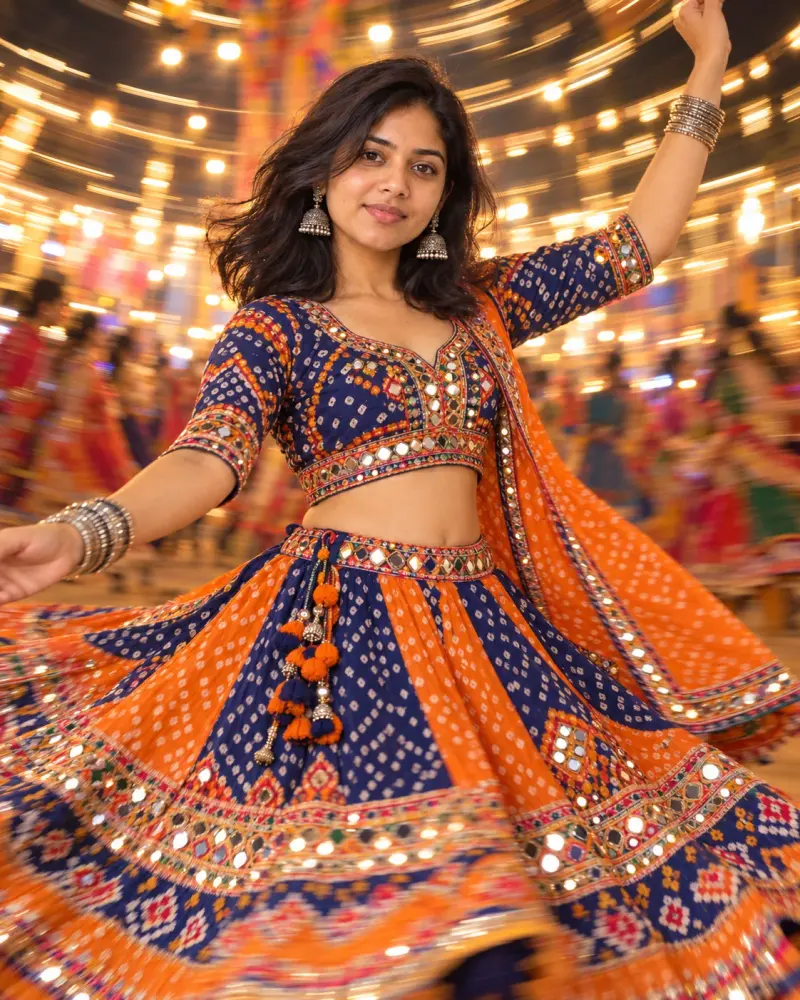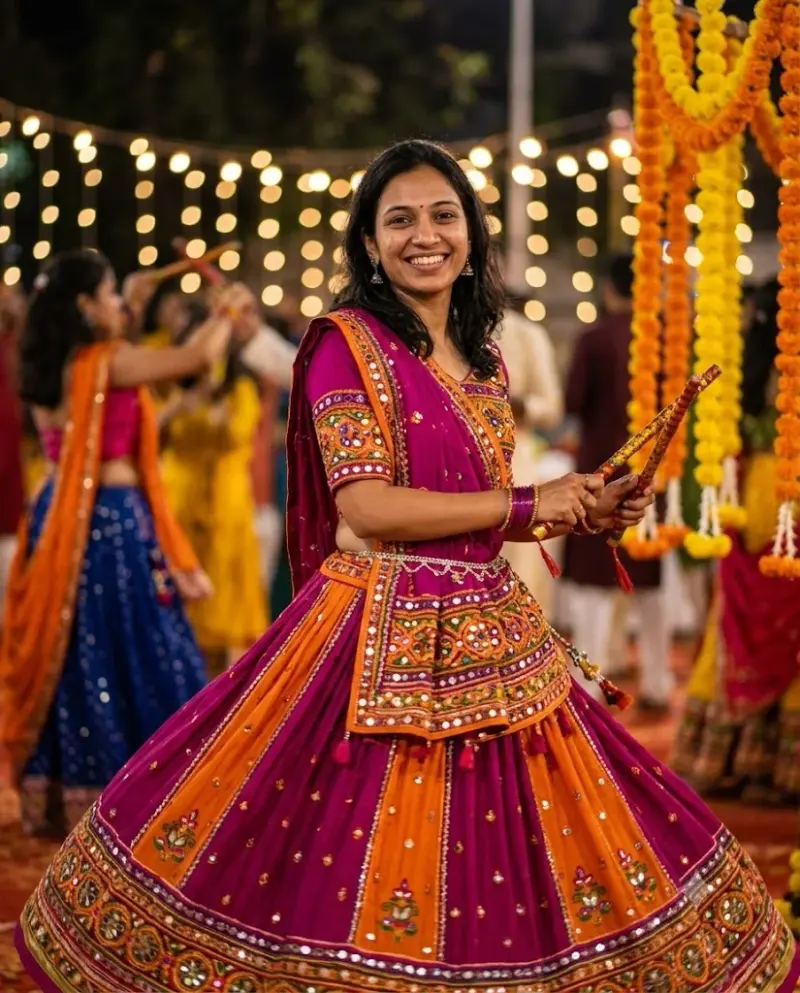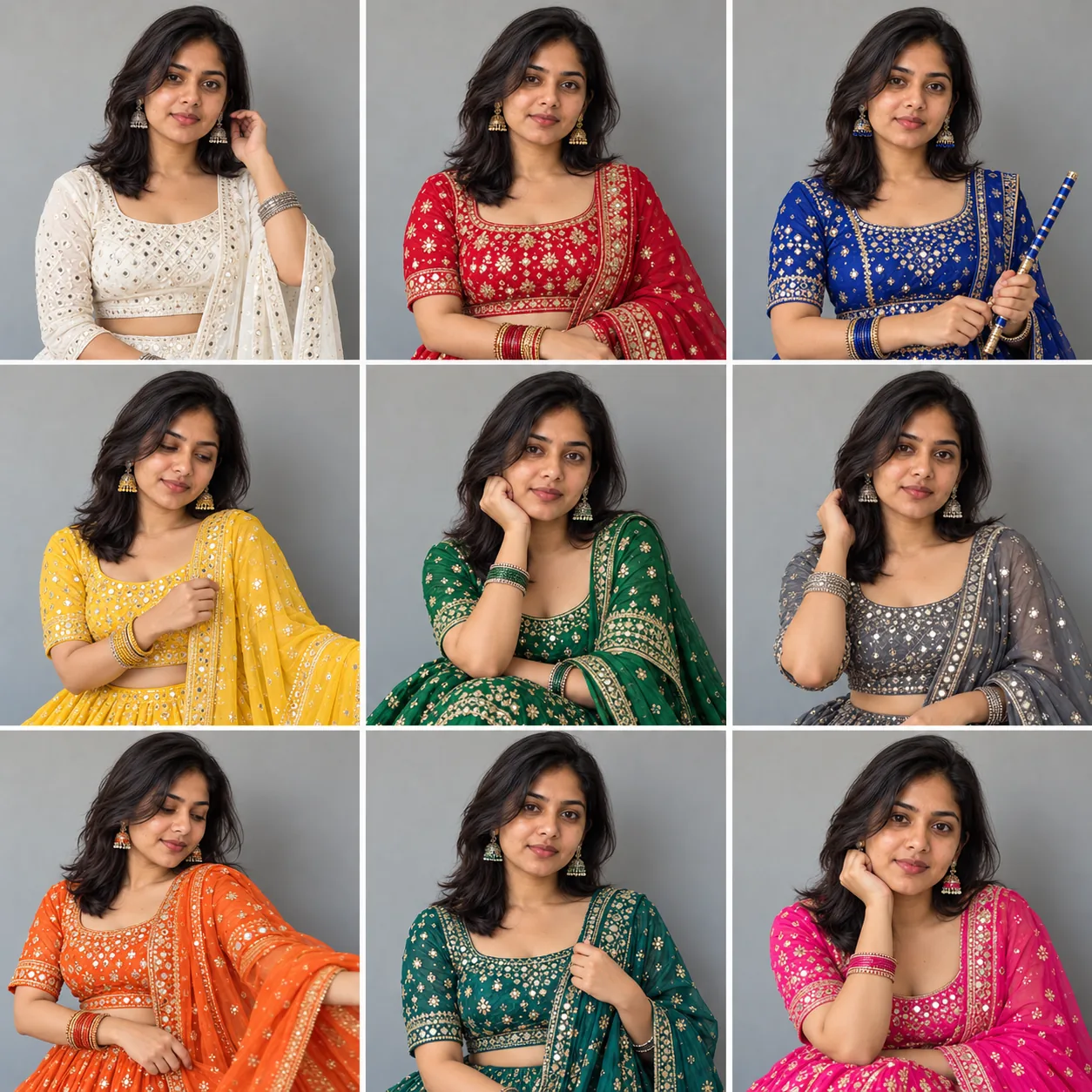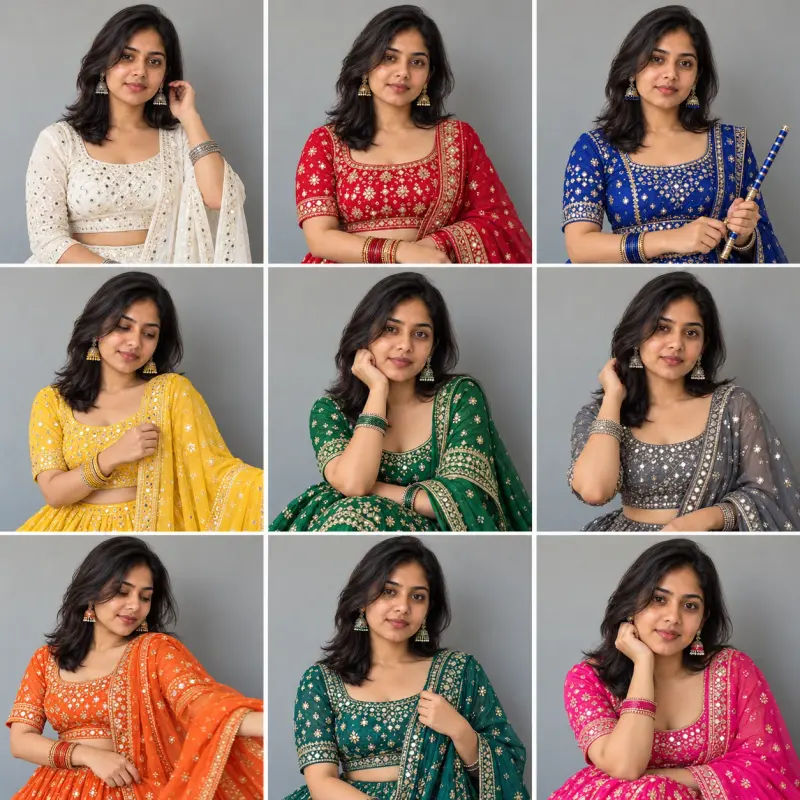
Navratri nine colours outfit grid
A 3×3 grid of you in nine different Navratri colour outfits, one for each night. Upload a clear photo, paste this prompt into ChatGPT, Gemini or Grok, change the parts in brackets to suit you, and generate.
For Navratri 2026, use Orange, white, red, royal blue, yellow, green, grey, purple, peacock green. The preview shows the original tested colours. Changing colours creates a new prompt version; that version has not been run-tested.
- Written for
- ChatGPT, Gemini, Grok
- You'll need
- A clear photo to upload
- Occasion
- Navratri, Durga Puja & Dussehra · 11 – 19 Oct · Dussehra 20 Oct
- Status
- Tested 5 Oct 2026 in OpenAI built-in image generator (model version not exposed)
- Test settings
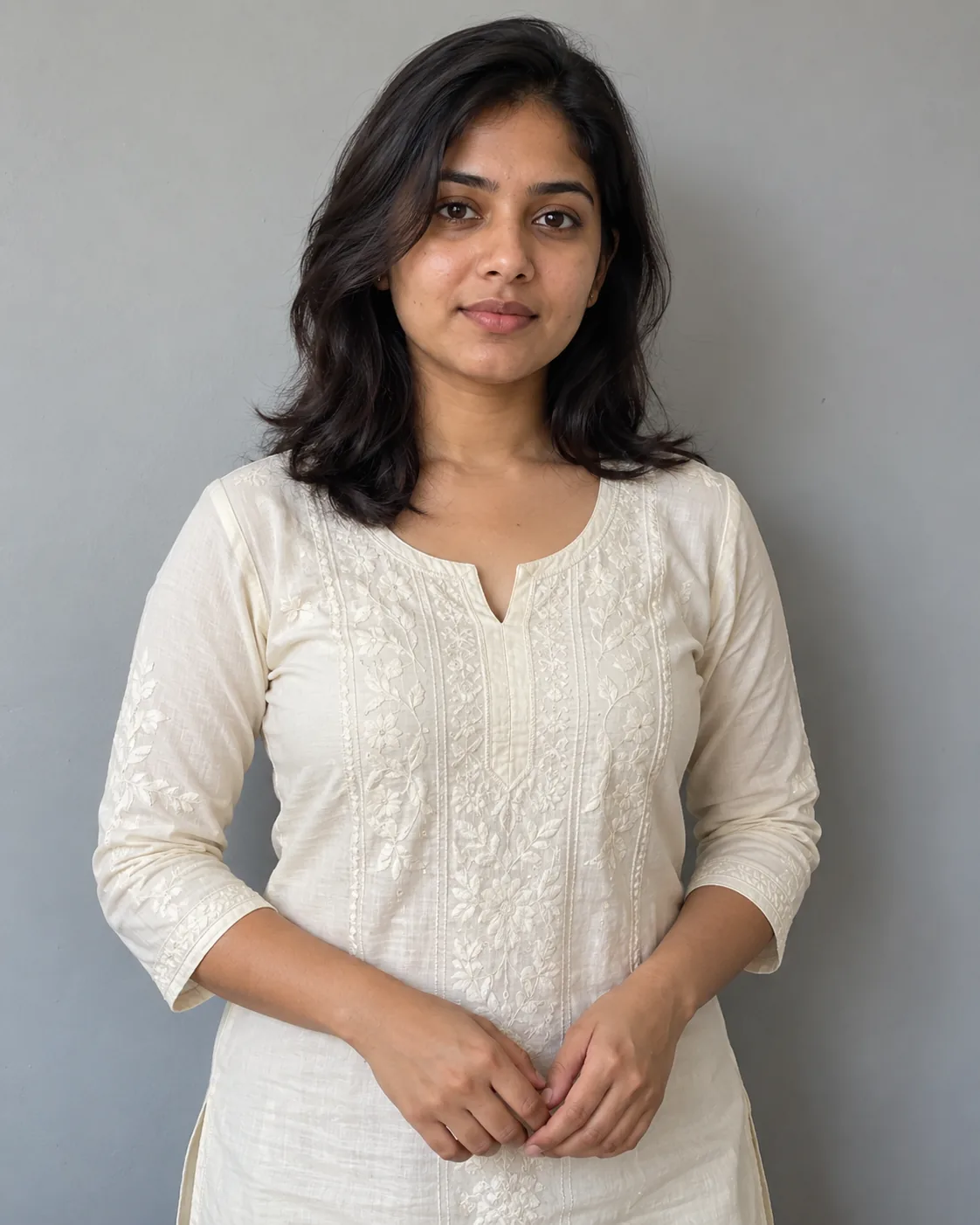
- Exact default copy text used. Synthetic AI-generated reference photo supplied as image input. One output selected; no seed or generation controls exposed. ChatGPT and Gemini app compatibility not separately tested.
- Variability
- Later runs and other uploaded photos may change identity, hands, objects or composition.
Prompt
Use the uploaded photo as the reference for the woman. Preserve their recognisable face, natural skin tone, hairline and build as closely as the model permits; check the result against the reference.
Scene: create a 3×3 grid of nine square portraits of the same woman against a plain warm-grey studio backdrop, each tile a different Navratri night.
Moment or Pose: in each tile she wears a traditional festive outfit in one colour, in this order left to right, top to bottom: white, red, royal blue, yellow, green, grey, orange, peacock green, pink. Vary the pose slightly in each tile — a smile, a twirl, holding dandiya sticks, adjusting a dupatta.
Clothing: chaniya choli or saree styles with matching jewellery.
Light: the same soft studio light in all nine tiles.
Camera: 85mm look, waist-up, same framing in every tile.
Style: clean, consistent editorial grid for a social post.
Format: square 1:1, thin white gaps between tiles.
Avoid: a different face in any tile, repeated colours, text or numbers, plastic skin, watermarks.
Customise
For example: white, red, royal blue, yellow, green, grey, orange, peacock green, pink.
Fields start with illustrative values; replace them with your own facts. The prompt updates as you type. Copy prompt copies your version.
How to use it
- Open an external image tool listed above. The tested model, if any, is named in Status.
- Upload a clear reference photo of the subject. If it includes identifiable people, get their consent and check each face.
- Customise the fields, copy your version, paste it with the photo and generate.
- Compare the result with the reference. If a face, pose or detail changes, ask for one correction or try again; an exact match is not guaranteed.
How to use this prompt
- This prompt changes your own photo. Choose a clear reference photo, and get permission from people who can be identified.
- Upload the photo in the external AI app you chose. Fill Customise, press Copy prompt and paste the prompt with the photo.
- Compare the new picture with the original. Face, hands, clothes and pose can change. An exact likeness is not guaranteed.
Good to know
- The preview shows the original tested colour list, not the 2026 calendar sequence. Use the 2026 preset or your local list. Faces can drift across nine tiles, so check each one. A changed colour list is not run-tested.
- Use reference photos you have the right to use; get consent from identifiable people.