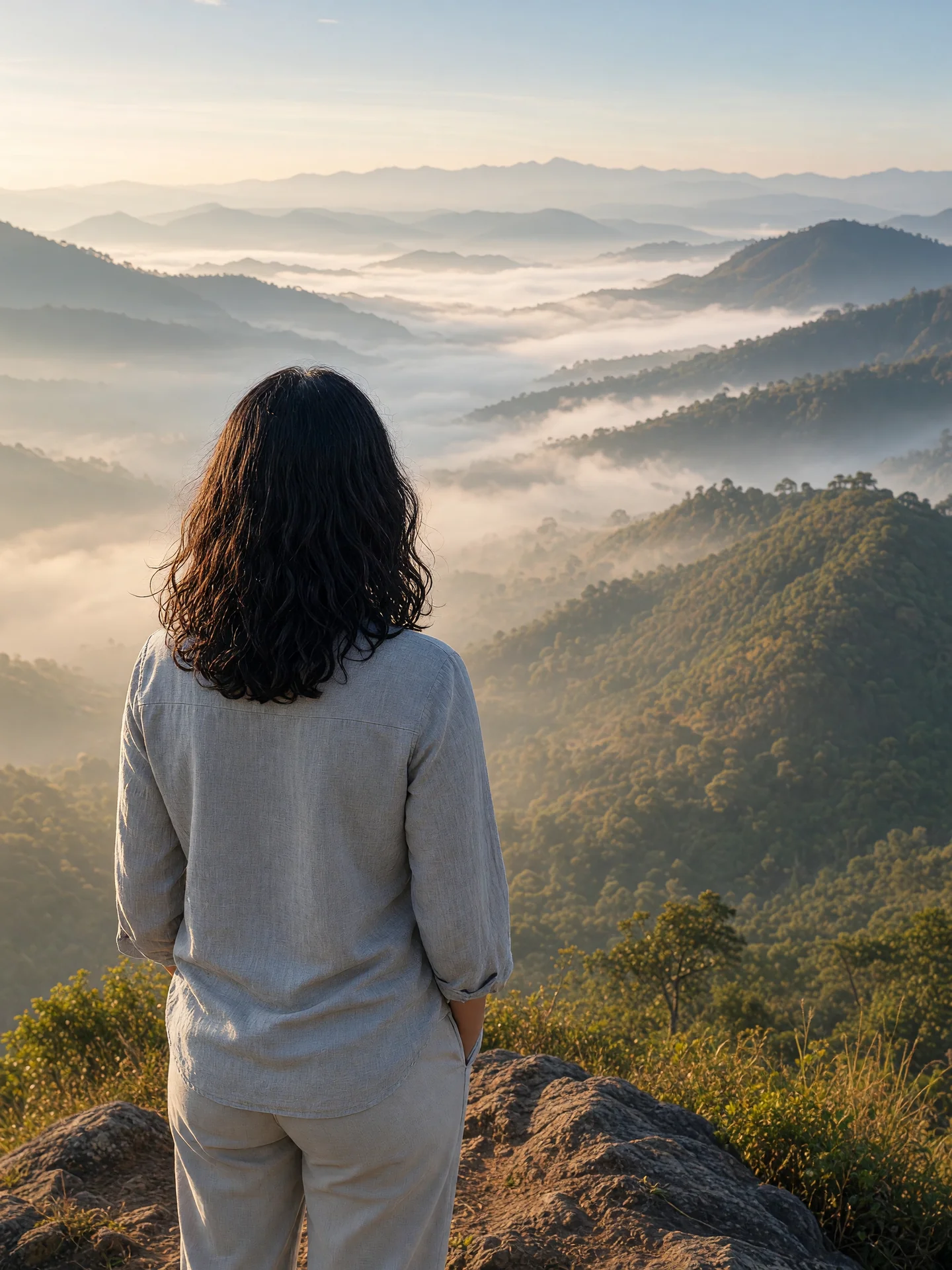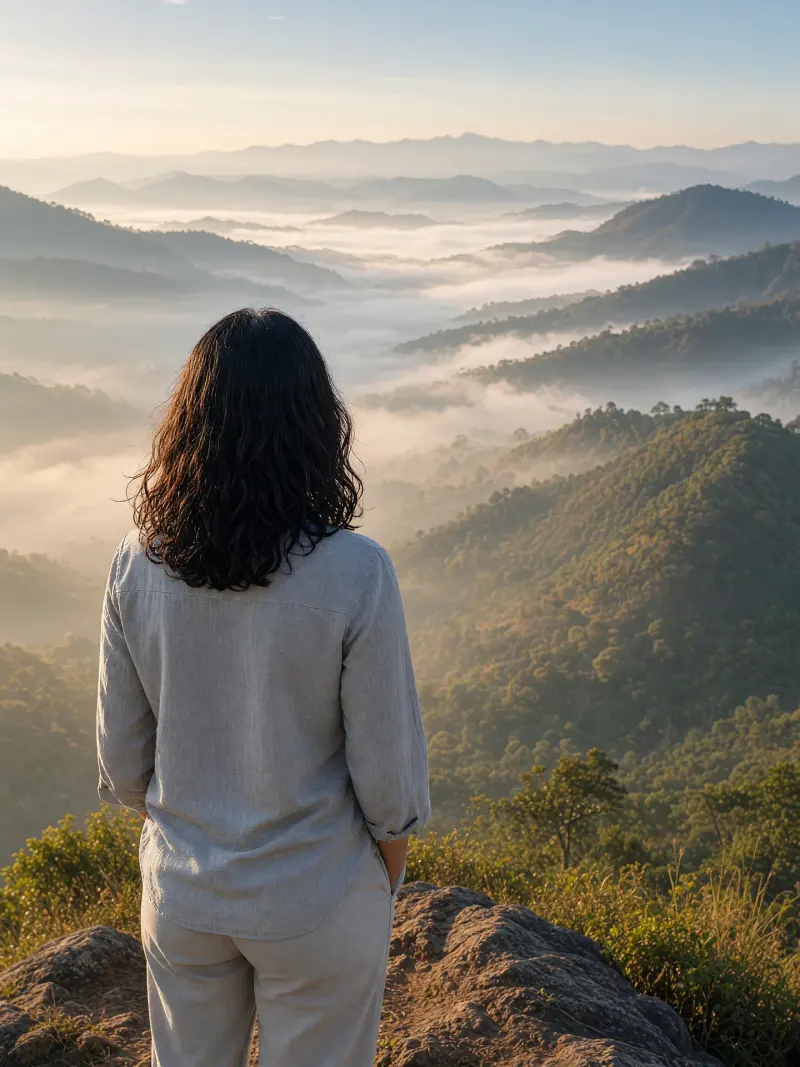
From behind, looking at a view
A photo of you seen from behind, gazing at a wide view, with your face never shown. Upload a clear photo, paste this prompt into ChatGPT, Gemini or Grok, change the parts in brackets to suit you, and generate.
Part of the Faceless portrait trend
- Written for
- ChatGPT, Gemini, Grok
- You'll need
- A clear photo to upload
- Status
- Tested 20 Oct 2026 in grok-imagine-image-2.0
- Test settings
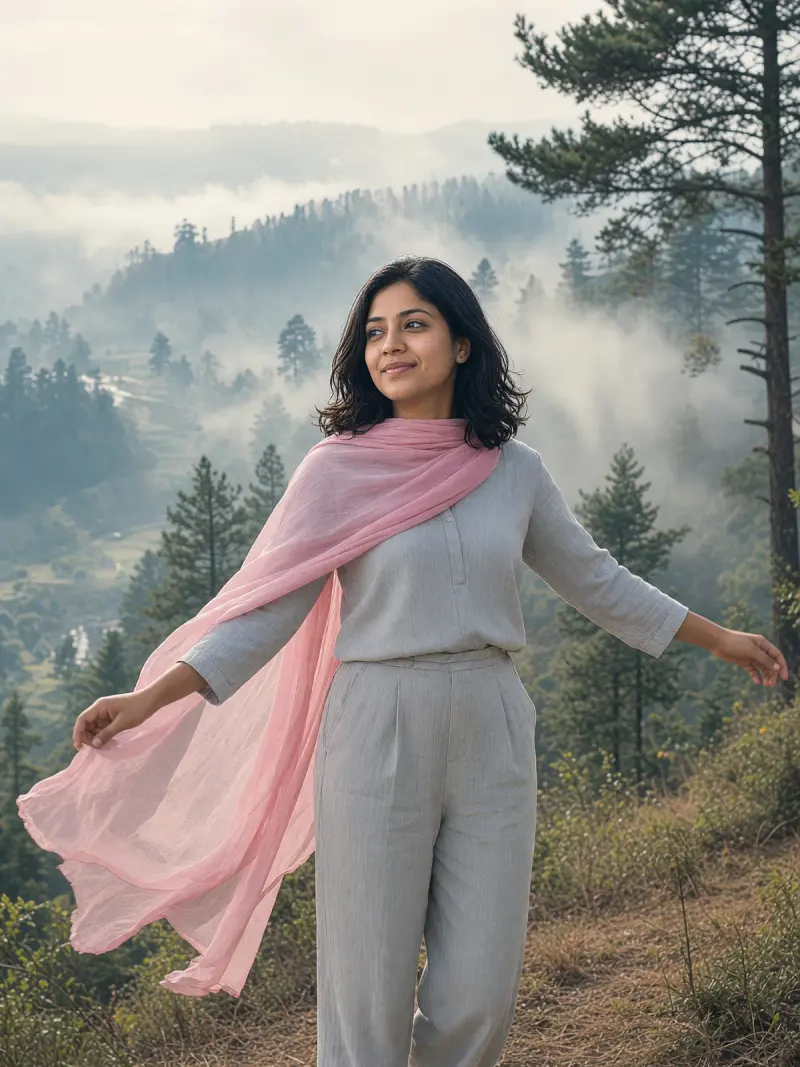
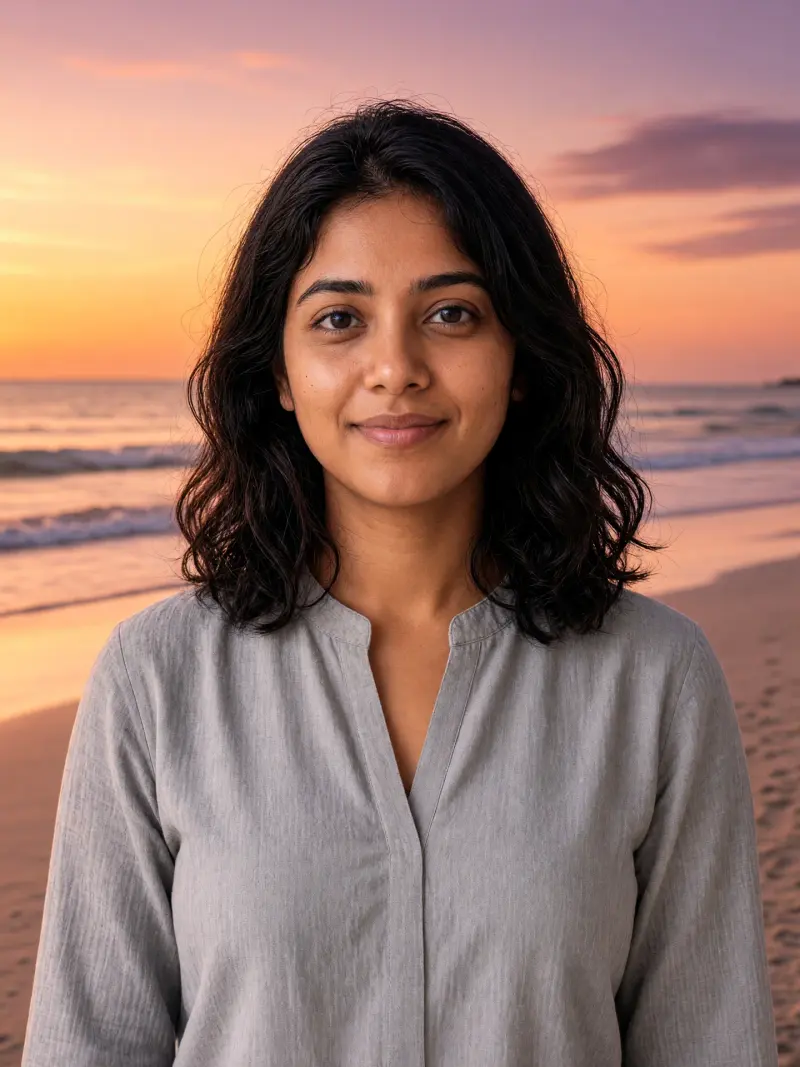
- Reference photo: an AI-generated picture of a fictional woman (not a real person), made in Grok for this test. Uploaded with the default copy text unchanged. Aspect ratio 3:4 (no 4:5 preset). First result used. Resized to 1440x1920 and converted to WebP.
- Variability
- Faces, poses and small details vary between runs; always compare the result with your own photo.
Prompt
Use the uploaded photo as the reference for the person's hair, build, natural skin tone and style. The face will be hidden on purpose, but keep the hairline, body proportions and visible skin tone true to the photo; check the result against the reference.
Scene: the person seen from behind, standing at the edge of a hill looking over misty valleys.
Pose: back to the camera, hands relaxed or in pockets, head turned toward the view.
Clothing: the outfit from the photo, with the hair exactly as in the photo.
Light: soft early-morning light falling on the scene ahead, gentle rim light on the shoulders.
Style: calm, cinematic travel photograph, natural colours, person small enough to show the view.
Format: vertical 4:5
Avoid: turning the face toward the camera, changing hair colour or length, changing build, skin lightening, extra limbs, text, logos, watermarks.
Customise
For example: the edge of a hill looking over misty valleys.
For example: soft early-morning light.
Fields start with illustrative values; replace them with your own facts. The prompt updates as you type. Copy prompt copies your version.
How to use it
- Open an external image tool listed above. The tested model, if any, is named in Status.
- Upload a clear reference photo of the subject. If it includes identifiable people, get their consent and check each face.
- Customise the fields, copy your version, paste it with the photo and generate.
- Compare the result with the reference. If a face, pose or detail changes, ask for one correction or try again; an exact match is not guaranteed.
How to use this prompt
- This prompt changes your own photo. Choose a clear reference photo, and get permission from people who can be identified.
- Upload the photo in the external AI app you chose. Fill Customise, press Copy prompt and paste the prompt with the photo.
- Compare the new picture with the original. Face, hands, clothes and pose can change. An exact likeness is not guaranteed.
Good to know
- From behind, the model only has your hair and clothes to work with, so check the hairstyle and outfit match.
- Use reference photos you have the right to use; get consent from identifiable people.