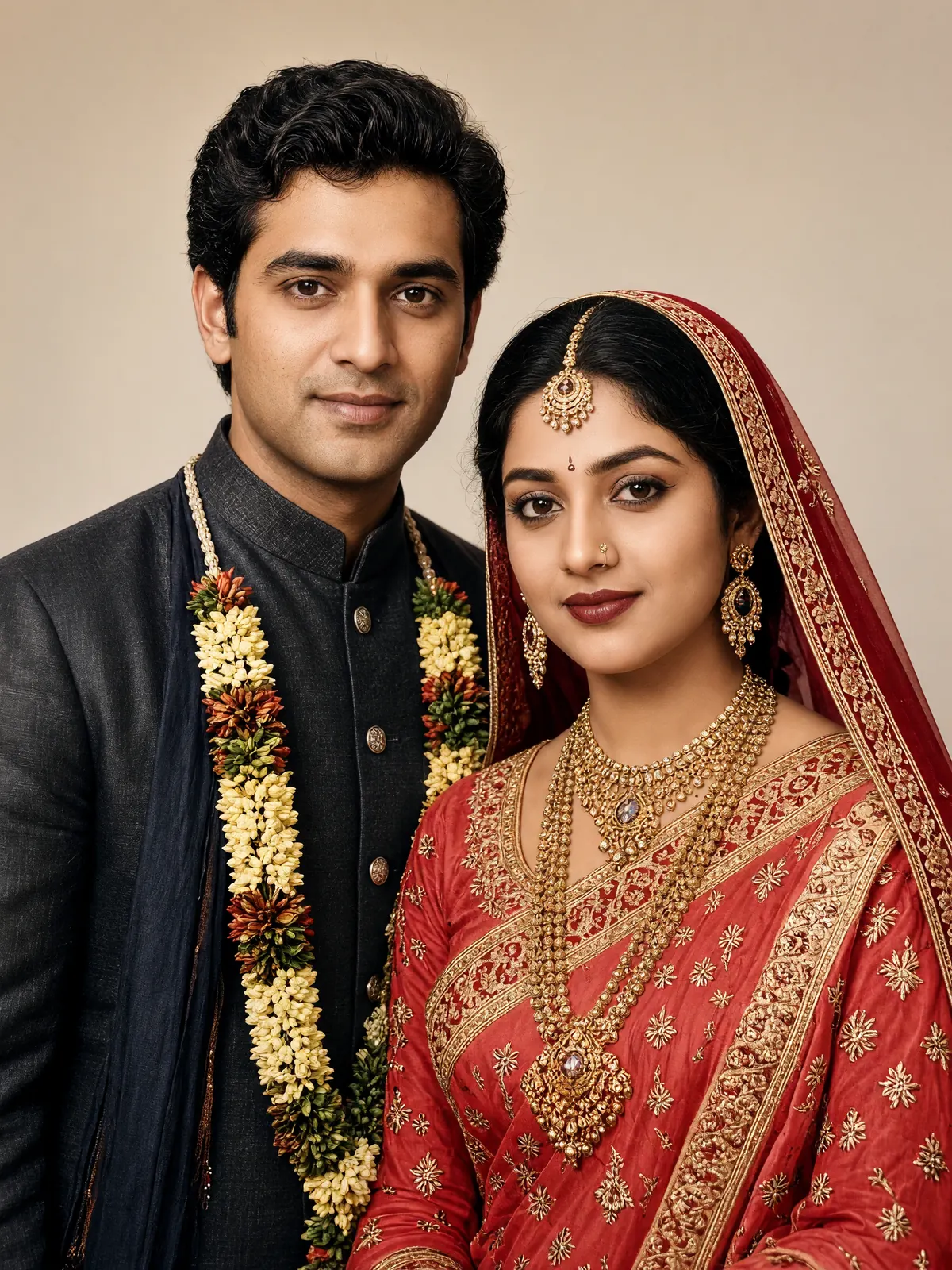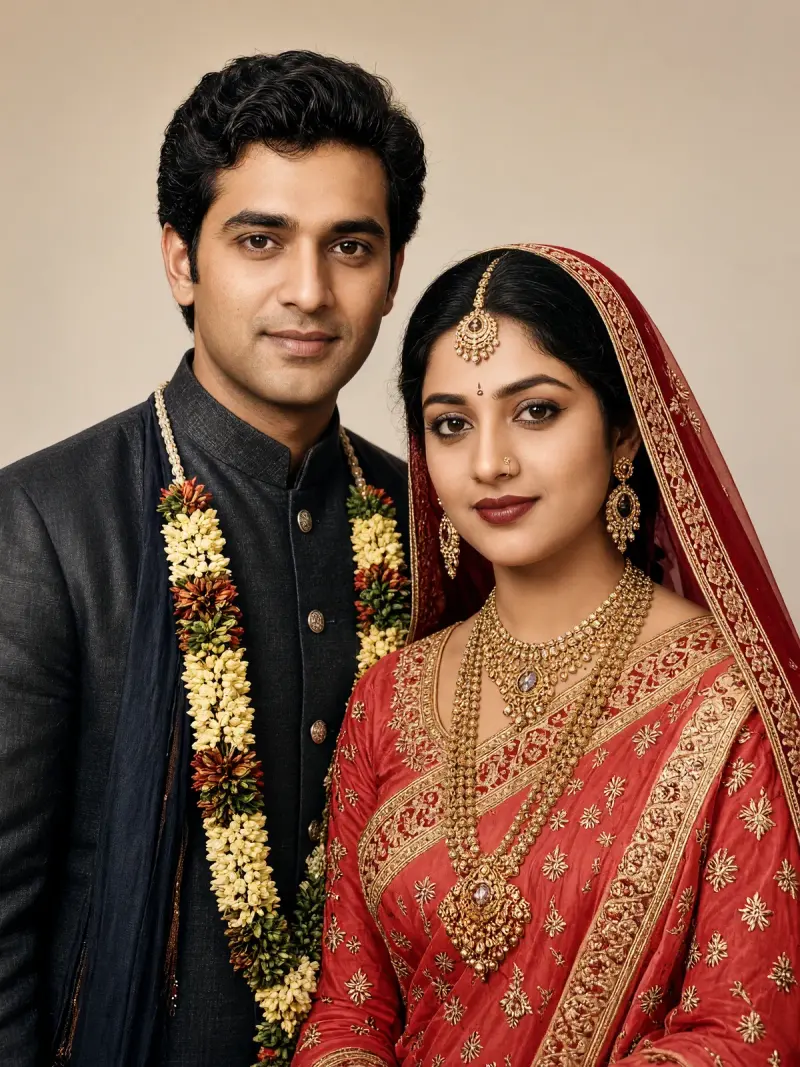
Colourise an old wedding couple photo
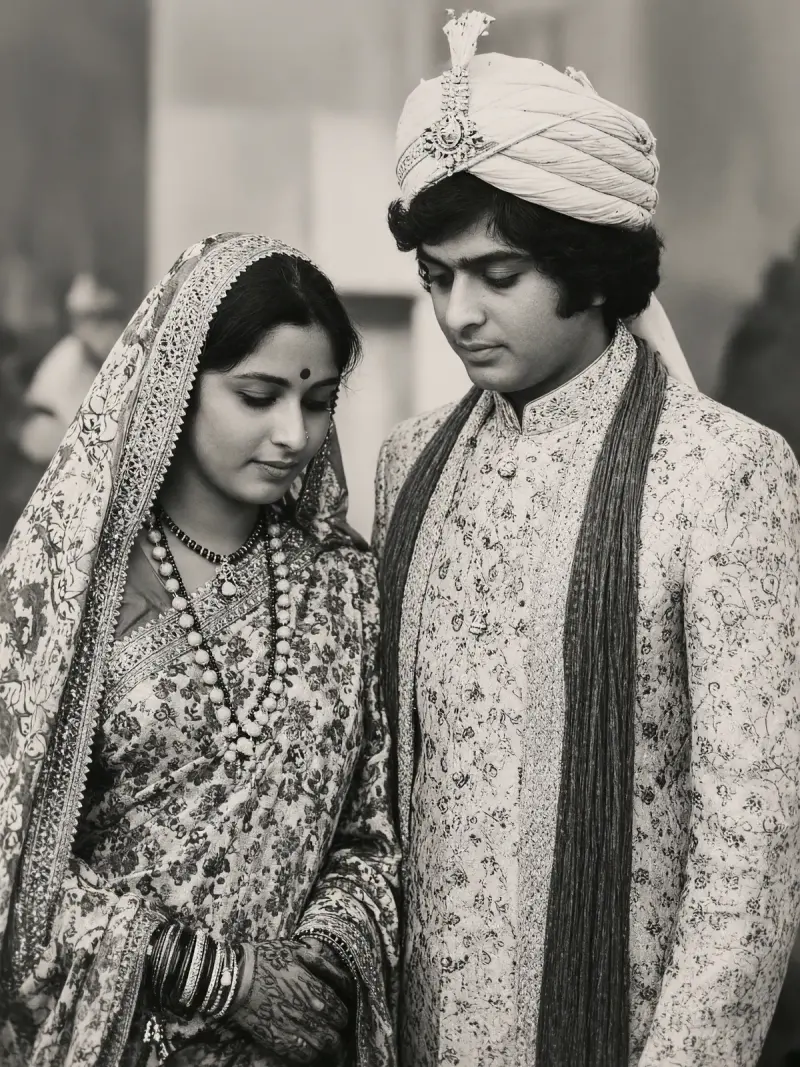
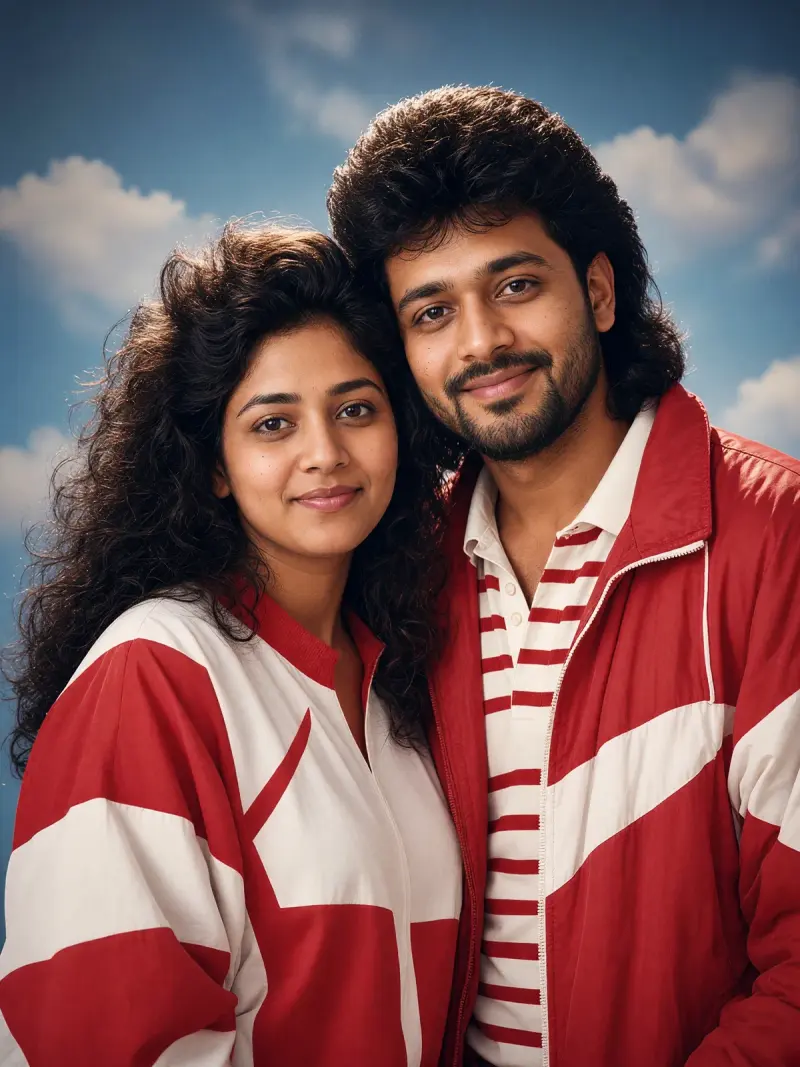
An old black-and-white wedding photo shown in warm, believable colour. Upload a clear photo, paste this prompt into ChatGPT, Gemini or Grok, change the parts in brackets to suit you, and generate.
Part of the Colourise old photo trend
- Written for
- ChatGPT, Gemini, Grok
- You'll need
- A clear photo to upload
- Status
- Tested 19 Oct 2026 in grok-imagine-image-2.0
- Test settings
- Reference photo: an AI-generated black-and-white photo of fictional adults, made to look old for this test. Uploaded with the default copy text unchanged. Aspect ratio matched the reference photo (3:4). First result used; resized to 1200x1600 and converted to WebP.
- Variability
- Repairs and colours are the model's guess and vary between runs; always compare with your original photo.
Prompt
Use the uploaded black-and-white wedding photo as the reference and colourise it; the couple in it is my family and I have permission to edit it. Keep both faces exactly as they are: same features, expression, age and proportions; check the result against the original.
Scene: the same wedding portrait and setting, colourised as a photo from 1980s.
Pose: keep both poses exactly as in the original.
Clothing: wedding clothes, flowers and jewellery in colours typical of the time; the bride's saree was red with a gold border.
Light: keep the original light and contrast.
Style: warm, natural vintage colourisation, realistic skin tones, original grain kept.
Format: same aspect ratio as the original photo
Avoid: changing either face or age, adding jewellery or decorations, adding people, neon colours, text, logos, watermarks.
Customise
For example: 1980s.
For example: the bride's saree was red with a gold border.
Fields start with illustrative values; replace them with your own facts. The prompt updates as you type. Copy prompt copies your version.
How to use it
- Open an external image tool listed above. The tested model, if any, is named in Status.
- Upload a clear reference photo of the subject. If it includes identifiable people, get their consent and check each face.
- Customise the fields, copy your version, paste it with the photo and generate.
- Compare the result with the reference. If a face, pose or detail changes, ask for one correction or try again; an exact match is not guaranteed.
How to use this prompt
- This prompt changes your own photo. Choose a clear reference photo, and get permission from people who can be identified.
- Upload the photo in the external AI app you chose. Fill Customise, press Copy prompt and paste the prompt with the photo.
- Compare the new picture with the original. Face, hands, clothes and pose can change. An exact likeness is not guaranteed.
Good to know
- Jewellery and flowers may get colours that were never there; mention any colours your family remembers.
- Use reference photos you have the right to use; get consent from identifiable people.